

Understanding the Role of Databases in Web Development In the world of web development, databases play a critical role in the smooth functioning of websites and applications. From small blogs to large-scale e-commerce platforms, almost every modern web application depends on a database to store, retrieve, and manage data efficiently. Understanding how databases work and their role in web development is essential for developers aiming to build dynamic and data-driven websites. In this guide, we’ll explore what databases are, the different types of databases available, their importance in web development, and how they integrate into web applications. What is a Database? A database is an organized collection of structured information or data that is stored electronically. In web development, databases are used to store everything from user information and product data to content management and session data. Databases allow websites and web applications to store, update, and retrieve data quickly and efficiently. They act as the backbone of any dynamic website, ensuring that data is accessible to users in real time. Why Are Databases Important in Web Development? Web development has evolved far beyond static HTML pages. Today’s web applications need to handle massive amounts of data, support real-time interactions, and deliver personalized content to users. Here are some of the key reasons why databases are essential in web development: Data Storage: Databases allow websites to store and organize vast amounts of data. Whether it’s user profiles, blog posts, product listings, or order histories, databases ensure that the information is accessible when needed. Dynamic Content: Most modern websites use databases to serve dynamic content. For instance, a user’s dashboard on a social media site or a product catalog on an e-commerce platform is dynamically generated from a database. Data Management: Databases allow developers to manage data effectively, perform CRUD operations (Create, Read, Update, Delete), and ensure data consistency. User Interaction: Websites that allow user interactions, such as comments, likes, or account creation, rely on databases to store and manage that data. Security and Backup: Databases ensure that data is securely stored, protected, and can be backed up regularly to prevent data loss. Types of Databases Used in Web Development Web developers have several types of databases to choose from, each with its own advantages and use cases. The two primary types of databases are Relational Databases and NoSQL Databases. 1. Relational Databases Relational databases store data in predefined tables (rows and columns) and use SQL (Structured Query Language) to manage and query data. They are designed to maintain relationships between different pieces of data, making them a great choice for structured data. Popular Relational Databases: MySQL: One of the most widely used open-source databases. Known for its reliability and performance, MySQL is often used in combination with PHP and is the go-to database for many content management systems like WordPress. PostgreSQL: An advanced, open-source relational database known for supporting complex queries and handling large-scale applications. It’s a great choice for web applications requiring high performance and scalability. SQLite: A lightweight, file-based database that doesn’t require a server. It’s often used for small to medium-sized applications or for prototyping. When to Use Relational Databases: When your application deals with structured data (data that can be organized into tables). When your application needs to maintain relationships between different types of data (e.g., users and their orders). When complex queries and transactional data are important. 2. NoSQL Databases NoSQL (Not Only SQL) databases offer more flexibility when it comes to storing and managing data, especially unstructured data. These databases are designed for large-scale, distributed data environments and don’t require predefined table schemas. Popular NoSQL Databases: MongoDB: A document-oriented database that stores data in JSON-like format. It’s highly scalable and flexible, making it a popular choice for web developers building applications with dynamic data models. Cassandra: Developed by Facebook, Cassandra is designed to handle massive amounts of data across many servers with no single point of failure. It’s used for highly available and scalable systems. Redis: An in-memory data structure store that can be used as a database, cache, and message broker. Redis is often used to store session data, user preferences, or real-time data for web applications. When to Use NoSQL Databases: When your application requires flexibility with data structures (i.e., unstructured or semi-structured data). When you need horizontal scalability (i.e., distributing data across multiple servers). When your application requires high-speed data access and storage, such as real-time analytics or caching. How Databases Integrate with Web Applications To understand the role of databases in web development, it’s important to know how they integrate with web applications. Databases work in the background, enabling the website to interact with the data layer and serve dynamic content to users. Here’s how databases typically interact with web applications: 1. Database Servers and Web Servers In a typical web development environment, the web server handles the user requests, while the database server stores and retrieves the data. These servers communicate via SQL (for relational databases) or other query languages (for NoSQL databases). For example, when a user submits a login form, the web server processes the form data and sends a query to the database server to verify the user’s credentials. If the credentials match, the database returns the relevant data (e.g., user ID and profile), which is then served back to the user. 2. Backend Programming Languages Backend languages like PHP, Node.js, Python, Ruby, and Java often interact with databases. They use Database Management Systems (DBMS) or database libraries to connect to databases, execute queries, and handle responses. For instance, in a PHP and MySQL-based website, PHP scripts send SQL queries to the MySQL database to retrieve or update data. Similarly, in a Node.js application using MongoDB, the backend uses a driver like Mongoose to interact with the NoSQL database. 3. ORM (Object-Relational Mapping) Many web applications use ORM (Object-Relational Mapping) frameworks to abstract database interactions. ORM frameworks allow developers to interact with the database using the object-oriented paradigm, making database queries easier to manage. Popular

How to Optimize Images for Faster Loading Times
How to Optimize Images for Faster Loading Times In today’s digital world, website speed is more important than ever. A fast-loading website not only improves user experience but also plays a critical role in search engine optimization (SEO) and conversion rates. Images are often the largest assets on a web page and can significantly impact the loading time of your site. Optimizing your images is a crucial step in creating a fast and efficient website. In this guide, we will explore the best practices for image optimization, tools you can use, and techniques to ensure your website loads faster without sacrificing image quality. Why Image Optimization is Important Before diving into the how-to, it’s important to understand why image optimization is critical: Faster Load Times: Unoptimized images can bloat a website, making it slower to load. Faster load times improve user experience, reduce bounce rates, and can even increase conversions. SEO Benefits: Search engines like Google take website speed into account when ranking pages. Optimized images help improve your site’s speed and contribute positively to SEO. Mobile Friendliness: Many users access websites from mobile devices. Optimizing images ensures that mobile visitors don’t have to wait for large, high-resolution images to load. Bandwidth Savings: By reducing the size of images, you can save bandwidth, which is especially important for users with limited data plans and for websites with high traffic. Key Image Optimization Techniques Let’s take a look at some proven strategies to optimize images for faster loading times. 1. Choose the Right Image Format Selecting the right image format can significantly affect the size of the file. The most common formats for web images are: JPEG (Joint Photographic Experts Group): Best for photographs and images with lots of colors and details. It offers good quality with smaller file sizes through compression. PNG (Portable Network Graphics): Best for images with transparency and sharp edges, such as logos or icons. PNG files are usually larger than JPEGs but retain better quality for certain types of images. WebP: WebP is a modern image format that provides superior compression compared to JPEG and PNG, while maintaining quality. WebP is supported by most modern browsers, making it a great choice for image optimization in 2024. SVG (Scalable Vector Graphics): Ideal for logos, icons, and illustrations that can scale without losing quality. SVGs are often smaller than raster images and are great for performance. GIF (Graphics Interchange Format): Best for simple animations. For still images, GIFs tend to have larger file sizes compared to JPEG and PNG. Tip: Use JPEG for photographs, PNG for images with transparency, WebP for modern browsers, and SVG for logos and icons. 2. Compress Images Compression reduces the file size of an image without noticeably affecting its quality. There are two types of compression: Lossy Compression: Reduces file size by eliminating some image data, potentially resulting in a slight quality reduction. Use lossy compression for images where the slight loss of quality won’t be noticeable. Lossless Compression: Reduces file size without losing any data, ensuring no quality loss. Use this for images that require sharpness and precision, like logos. Tools for Compression: TinyPNG: Compresses PNG and JPEG images with minimal loss of quality. ImageOptim: A Mac tool that optimizes images and removes unnecessary metadata. JPEG-Optimizer: A simple tool for compressing JPEG images. Squoosh: Google’s web-based tool that supports multiple formats and offers both lossy and lossless compression. 3. Resize Images Appropriately Serving images larger than necessary can significantly slow down your website. For example, if your website displays images at 800px wide, there’s no need to upload an image that’s 3000px wide. Make sure your images are scaled to the correct dimensions for the web. You can use CSS to resize images dynamically, but the best practice is to upload images that are already resized to fit the layout. How to Resize: Photoshop: Allows precise resizing and has options for saving images for the web. GIMP: A free, open-source alternative to Photoshop for image editing and resizing. Canva: An easy-to-use online tool for resizing images quickly. 4. Use Lazy Loading for Images Lazy loading is a technique where images are only loaded when they come into view on the user’s screen. This reduces the initial page load time, as images below the fold (i.e., not immediately visible) aren’t loaded until the user scrolls down. Lazy loading can drastically improve your website’s performance, especially if your page contains many images. How to Implement Lazy Loading: In HTML5, you can add the loading=”lazy” attribute to image tags: html Copy code <img src=”example.jpg” alt=”example image” loading=”lazy”> WordPress plugins like Lazy Load by WP Rocket can automate lazy loading for your site. For more control, use JavaScript libraries like LazyLoad.js. 5. Use Responsive Images Responsive images ensure that your website displays different image sizes based on the user’s device, reducing unnecessary load times on mobile devices. This technique involves serving smaller images to mobile users while still providing high-quality images to desktop users. In HTML5, you can use the srcset attribute to specify different image sizes for different screen widths: html Copy code <img src=”small.jpg” srcset=”medium.jpg 768w, large.jpg 1024w” sizes=”(max-width: 768px) 100vw, (max-width: 1024px) 50vw” alt=”Responsive image example”> This ensures that the browser selects the appropriate image size based on the device’s screen resolution. 6. Remove Unnecessary Metadata Images often come with metadata, such as camera details, geolocation, and date information, which can increase the file size. Removing this metadata can reduce the image size without affecting its visual quality. Tools for Metadata Removal: ExifTool: A powerful command-line tool for removing metadata. ImageOptim: Automatically removes unnecessary metadata when compressing images. JPEG-Optimizer: Offers options to strip metadata from JPEG images. 7. Use a Content Delivery Network (CDN) A Content Delivery Network (CDN) stores your images on servers distributed across different geographical locations. When a user visits your website, the CDN delivers the images from the server closest to the user, reducing load times. Popular CDNs like Cloudflare, Amazon CloudFront, and KeyCDN can help deliver your

Why You Should Consider WebAssembly in 2024
Why You Should Consider WebAssembly in 2024 WebAssembly (Wasm) has been a game-changer since its introduction to the web development world. As we step into 2024, the web continues to evolve at an astonishing pace, and so does the demand for high-performance, cross-platform applications. WebAssembly, a binary instruction format for a stack-based virtual machine, is at the heart of this evolution, making it one of the most promising technologies to consider in the coming years. This blog explores what WebAssembly is, why it matters, and why you should consider adopting it in 2024. What is WebAssembly? WebAssembly (Wasm) is a low-level, assembly-like language that runs with near-native performance in modern web browsers. It was developed to allow high-performance applications (like games, simulations, and productivity apps) to run in the browser while overcoming some of the performance limitations of JavaScript. Wasm is designed to complement JavaScript, not replace it. It’s often used to handle the most performance-critical parts of an application, while JavaScript remains responsible for higher-level logic. WebAssembly code is executed in a secure sandbox, ensuring the same level of safety as JavaScript. Why WebAssembly Matters in 2024 1. High Performance on the Web One of the most significant advantages of WebAssembly is its ability to run applications at near-native speeds. Traditional web applications written in JavaScript can sometimes struggle with performance, especially when handling complex computations, real-time simulations, or video rendering. WebAssembly, however, is compiled from languages like C, C++, or Rust, which allows it to run much faster than JavaScript in many cases. In 2024, as more applications demand high-speed processing—whether it’s real-time 3D rendering, complex data visualization, or interactive gaming—WebAssembly provides an efficient way to improve performance without requiring users to download and install desktop software. 2. Cross-Language Support WebAssembly enables developers to write code in multiple programming languages, including C, C++, Rust, Go, and many others, and run it on the web. This cross-language support opens up new possibilities for developers who are not limited to JavaScript for web applications. If you are a developer experienced in languages like C++ or Rust, WebAssembly allows you to bring your expertise to the web environment. It offers the opportunity to reuse existing codebases, speeding up the development process and making it easier to build complex applications. For instance, video games that are traditionally written in C++ can now be ported to the web using WebAssembly, allowing them to reach a broader audience without sacrificing performance. 3. Expanding Use Cases In 2024, WebAssembly is expected to go beyond just improving web performance. Here are some of the growing use cases: Gaming: WebAssembly allows AAA-quality games to be played in browsers without sacrificing speed or performance, creating smoother and more immersive experiences. Machine Learning: AI and ML models require heavy computation, which WebAssembly can handle efficiently. It can run machine learning algorithms in the browser at high speed, without relying on server-side computation. Video Editing and Processing: With WebAssembly, video editing software traditionally available only on desktop can now run in the browser, enabling real-time editing capabilities. Cryptography: WebAssembly’s performance is also useful for cryptographic functions, where speed and precision are crucial for secure web applications. IoT and Edge Computing: WebAssembly can be deployed on low-power devices, opening new possibilities for IoT and edge computing scenarios. As the range of WebAssembly use cases continues to expand, more industries will find valuable applications, making it essential to adopt in 2024. 4. Improved Security Security has always been a top concern in web development, and WebAssembly takes this seriously. WebAssembly code runs in a secure sandbox, which means it is isolated from the rest of the application and the underlying operating system. This ensures that if there’s any issue with the Wasm module, it won’t compromise the entire system. Furthermore, WebAssembly is compiled, which reduces the risk of certain types of vulnerabilities that are common in scripting languages like JavaScript. As cybersecurity continues to be a key concern in 2024, adopting WebAssembly can help developers build safer web applications. 5. Compatibility with Modern Browsers One of the most significant advantages of WebAssembly is that it is supported by all major web browsers, including Google Chrome, Mozilla Firefox, Microsoft Edge, and Apple Safari. WebAssembly modules run natively in these browsers without any plugins or additional software, making them accessible to millions of users worldwide. As web browsers continue to evolve and improve, WebAssembly’s integration with them becomes even smoother. In 2024, developers can confidently build Wasm applications knowing that their users, regardless of their choice of browser, will have a seamless experience. 6. Cloud and Server-Side Development In addition to its growing prominence in client-side applications, WebAssembly is making its way into server-side development. Platforms like Cloudflare Workers and Fastly have embraced WebAssembly, allowing developers to run Wasm modules on edge computing platforms. This provides significant advantages for microservices architecture and serverless computing, where WebAssembly’s small size, speed, and efficiency make it ideal for cloud environments. In 2024, we can expect to see more server-side applications leveraging WebAssembly for scalable, high-performance web services. 7. Portability and Scalability WebAssembly’s architecture is designed to be portable. It can run on various platforms and devices, from web browsers to mobile devices and even desktop applications. This portability ensures that WebAssembly applications can be deployed anywhere without significant modifications, making them highly scalable. As the need for scalable applications increases in 2024, WebAssembly will be a critical component in creating apps that can seamlessly scale across multiple devices and platforms. How to Get Started with WebAssembly in 2024 If you’re considering WebAssembly for your 2024 projects, here’s a simple guide to get started: Learn a Compiled Language: Start by learning a language that compiles to WebAssembly, such as C, C++, or Rust. Rust is becoming a popular choice because of its focus on performance and safety. Explore WebAssembly Tooling: WebAssembly has a growing ecosystem of tools that help developers compile and run Wasm modules. Tools like Emscripten for C/C++ and wasm-pack for Rust are great places

The Benefits of Learning Web Development for Career Growth
The Benefits of Learning Web Development for Career Growth In the digital age, web development has become one of the most in-demand and versatile skills. As businesses and industries increasingly rely on the internet for their operations, the need for skilled web developers is skyrocketing. Whether you’re a seasoned professional looking for a career shift or someone just starting, learning web development offers a wide range of benefits that can significantly boost your career prospects. In this article, we’ll explore the key reasons why learning web development is an excellent choice for anyone aiming for career growth in 2024 and beyond. 1. High Demand for Web Developers The demand for web developers is at an all-time high. Companies of all sizes, from startups to multinational corporations, require well-designed, functional websites and web applications to operate. According to the U.S. Bureau of Labor Statistics, employment of web developers is projected to grow much faster than the average for all occupations. This demand creates ample job opportunities across a range of industries, including tech, retail, healthcare, and education. The growth of e-commerce, digital marketing, and online services has made web development an essential part of every business, ensuring that the demand for developers remains strong in the coming years. 2. High-Paying Job Opportunities Web development is not only in demand but also one of the highest-paying fields in tech. Salaries for web developers vary based on expertise, location, and the complexity of projects. Junior developers may start with competitive salaries, while experienced full-stack developers or specialized front-end/back-end developers can command six-figure incomes. Here’s a rough estimate of web developer salaries: Junior Developer: $50,000 – $75,000 annually Mid-Level Developer: $75,000 – $100,000 annually Senior/Full-Stack Developer: $100,000+ annually Specializing in specific areas such as mobile development, UI/UX design, or cybersecurity can further increase your earning potential. 3. Opportunities for Remote Work Web development is one of the most flexible careers when it comes to remote work. With the rise of telecommuting, many companies now offer full-time remote positions to developers. Freelancers and contractors can work from virtually anywhere, providing services to clients worldwide. The ability to work remotely offers several advantages: Work-Life Balance: You can manage your time more efficiently and maintain a healthier work-life balance. Global Opportunities: You can work for international clients or companies, broadening your career prospects. Reduced Commute: Save time and money by eliminating daily commutes. If remote work is something you value, web development opens doors to a career that allows you to work from home or any location of your choice. 4. Freelancing and Entrepreneurship Learning web development provides you with the skills to start your own freelance business or even a web development agency. As a freelance web developer, you can choose your clients, set your rates, and create your own work schedule. Whether you want to build websites for small businesses, startups, or personal brands, the possibilities are endless. The rise of platforms like Upwork, Fiverr, and Toptal has made it easier for freelance developers to find clients and projects. Freelancing also allows you to diversify your income by working on multiple projects simultaneously, which can be particularly beneficial if you want to build a portfolio quickly. For those with an entrepreneurial mindset, web development also provides the skills to build and launch your own tech products or startups, like SaaS (Software as a Service) platforms or e-commerce sites. 5. Continuous Learning and Growth Web development is an ever-evolving field. Technologies, frameworks, and programming languages continue to advance, offering web developers the opportunity to constantly learn new skills. From learning new front-end frameworks like React or Vue.js to mastering back-end technologies like Node.js or Python, web development provides continuous learning experiences. This constant growth keeps the work interesting and ensures that you remain relevant in the industry. Developers who stay up-to-date with the latest trends and technologies can position themselves as industry leaders and further accelerate their career growth. 6. Diverse Career Paths Web development is a broad field, offering several specialized career paths. Depending on your interests, you can pursue various roles, such as: Front-End Developer: Specializes in building the client-side (what users see) of websites and web applications, focusing on user experience, design, and interactivity. Back-End Developer: Focuses on server-side logic, databases, and APIs that power the front-end of a website or app. Full-Stack Developer: Combines both front-end and back-end skills, working on all aspects of a web project from concept to launch. UI/UX Designer: Concentrates on creating visually appealing, user-friendly interfaces that enhance the user experience. Mobile Web Developer: Focuses on creating mobile-optimized websites or hybrid web applications that work seamlessly on smartphones and tablets. By learning web development, you have the freedom to choose a career path that aligns with your strengths and interests, and you can transition between roles as your skills evolve. 7. Build Your Own Projects One of the most exciting benefits of learning web development is the ability to create your own projects. Whether it’s a personal blog, an e-commerce store, or a portfolio website, web development gives you the power to bring your ideas to life. You can experiment with different technologies and push the limits of your creativity. Building your own projects can also lead to business opportunities. Many successful tech startups began as small side projects built by developers who identified a gap in the market. For example, platforms like Instagram and Airbnb were originally developed by a small team of web developers. Creating projects also strengthens your portfolio, showcasing your skills to potential employers or clients, which is a significant advantage in job interviews or client pitches. 8. Collaborate with Other Tech Professionals As a web developer, you’ll often collaborate with other tech professionals, such as designers, project managers, and other developers. Working in such collaborative environments exposes you to different perspectives and helps you develop team-based problem-solving skills. This collaboration is invaluable for career growth, as it helps you build relationships with industry professionals, expand your network, and learn from others. Many

How to Integrate Third-Party APIs into Your Website
How to Integrate Third-Party APIs into Your Website In modern web development, APIs (Application Programming Interfaces) play a crucial role in enhancing website functionality by allowing your site to interact with external services. From embedding social media feeds to incorporating payment gateways, third-party APIs enable websites to integrate advanced features quickly and efficiently. This guide will walk you through everything you need to know about integrating third-party APIs into your website. What Is a Third-Party API? A third-party API is an interface provided by external services or platforms, allowing developers to connect and interact with their services. For example, Google Maps, Twitter, and Stripe offer APIs to integrate their services (like maps, social media feeds, or payment processing) into your website. APIs facilitate the exchange of data between your website and the external service, typically via HTTP requests in formats like JSON or XML. Why Use Third-Party APIs? Here are some reasons why integrating third-party APIs is beneficial: Save Time and Resources: Instead of building complex features from scratch, you can use APIs to leverage existing services. Enhance User Experience: Integrate features like maps, payment gateways, social media feeds, or weather data, which enhance the functionality of your website. Maintain Focus: APIs allow you to focus on your core product or service while external services handle specialized tasks. Continuous Updates: When you use an API, you get the latest data or features from the service provider without needing to manually update your site. Step-by-Step Guide to Integrating Third-Party APIs Now that you understand the importance of APIs, let’s dive into how to integrate them into your website. Step 1: Choose the Right API for Your Website The first step is selecting the right API that aligns with the feature or functionality you want to add to your site. Common API use cases include: Maps and Geolocation: Google Maps API for adding location services. Social Media Integration: Twitter, Facebook, or Instagram APIs to display social feeds. Payment Processing: Stripe, PayPal, or Square APIs for accepting online payments. Data and Analytics: Google Analytics API to track and report website traffic. Weather Information: OpenWeather API for displaying real-time weather data. Make sure to choose a reliable API with comprehensive documentation and support, so you can troubleshoot issues during implementation. Step 2: Sign Up and Get API Credentials Most APIs require you to sign up and obtain an API key or credentials, which authorize your website to access the third-party service. Here’s a general process: Create an Account: Visit the website of the API provider (e.g., developers.google.com for Google APIs) and create an account. Generate an API Key: Once your account is set up, navigate to the API dashboard or console to generate an API key. This key is unique to your account and is required to authenticate requests. Set Up Permissions: Depending on the API, you may need to configure access permissions (e.g., only allowing requests from your domain). Important: Keep your API key secure and do not expose it publicly in your code, as it can be misused by others. Step 3: Review API Documentation Each API has its own set of documentation that outlines how to integrate it with your website. The documentation typically covers: Authentication: How to authenticate your API key with the service. Endpoints: URLs that your website sends requests to in order to get data (e.g., https://api.example.com/data). Request Methods: HTTP methods like GET, POST, PUT, and DELETE, which tell the API what action you want to perform. Rate Limits: Restrictions on how many requests you can make per minute or hour. Data Formats: How the data is structured (usually in JSON or XML) and what parameters to include in the request. Reading through the API documentation is crucial to ensure proper implementation and avoid potential errors. Step 4: Make an API Request Once you have your API key and understand the documentation, it’s time to make an API request. Most APIs use HTTP requests (GET or POST) to retrieve or send data. Here’s a simple example using JavaScript (Fetch API) to make a GET request to a weather API: javascript Copy code // Example: Fetch weather data using OpenWeather API const apiKey = ‘YOUR_API_KEY’; const city = ‘London’; const apiUrl = `https://api.openweathermap.org/data/2.5/weather?q=${city}&appid=${apiKey}`; // Make API request fetch(apiUrl) .then(response => response.json()) // Parse the JSON response .then(data => { console.log(‘Weather data:’, data); // Handle the data document.getElementById(‘weather’).innerHTML = `Temperature: ${data.main.temp}`; }) .catch(error => console.error(‘Error fetching data:’, error)); In this example, the script sends a request to the OpenWeather API, retrieves weather data for London, and displays the temperature on the webpage. Step 5: Display the Data on Your Website After retrieving data from the API, the next step is to display it on your website. Depending on the API and the type of data, you might need to: Format the Data: APIs typically return data in JSON format. You’ll need to extract the relevant fields and format the data for display on your webpage. Update the DOM: Use JavaScript or a front-end framework (e.g., React, Angular, or Vue.js) to dynamically update the HTML content and show the API data. For example, if you’re using the Google Maps API, you can embed a map on your website and display markers or custom overlays. html Copy code <div id=”map” style=”width: 400px; height: 300px;”></div> <script> function initMap() { var location = { lat: -25.344, lng: 131.036 }; var map = new google.maps.Map(document.getElementById(‘map’), { zoom: 4, center: location }); } </script> <script src=”https://maps.googleapis.com/maps/api/js?key=YOUR_API_KEY&callback=initMap”></script> This example shows how to integrate Google Maps into your webpage using the Maps API. Step 6: Handle API Errors API integration doesn’t always go smoothly. Sometimes, you’ll encounter errors due to invalid requests, rate limits, or authentication issues. It’s important to handle these errors gracefully to avoid breaking your website’s functionality. Here’s an example of how to handle errors when making an API request: javascript Copy code fetch(apiUrl) .then(response => { if (!response.ok) { throw new Error(‘Network response was not ok’); } return response.json(); }) .then(data => {

Building a Blog from Scratch: A Complete Guide
Building a Blog from Scratch: A Complete Guide Starting a blog can be a rewarding venture, whether you want to share your expertise, promote a business, or earn money online. But with so many options available, building a blog from scratch can seem like a daunting task. In this complete guide, we’ll walk you through every step of the process, from choosing the right platform to optimizing your blog for SEO and beyond. Step 1: Define Your Blog’s Purpose Before you start building your blog, it’s essential to define the purpose and goals of your blog. Ask yourself the following questions: What topics are you passionate about? Who is your target audience? What value will you provide to your readers? Are you blogging as a hobby, to promote your business, or as a source of income? Clearly defining your blog’s purpose will help guide your decisions throughout the development process and create a roadmap for your content strategy. Step 2: Choose the Right Blogging Platform The next step is choosing the best platform to host your blog. There are several popular blogging platforms, but the most widely used are: WordPress.org (self-hosted): Offers complete control and flexibility, but requires setting up your own hosting. WordPress.com: Hosted by WordPress, easier for beginners but with limited customization. Blogger: Free and simple to use, but lacks advanced features and customization options. Wix: Easy drag-and-drop website builder with blogging features but limited compared to WordPress.org. For most users, WordPress.org is the best option due to its flexibility, scalability, and control. You’ll have access to thousands of themes and plugins to enhance your blog. Step 3: Register a Domain Name and Choose a Hosting Provider Your domain name is the address of your blog on the web (e.g., www.yourblogname.com). It’s essential to choose a domain name that is easy to remember, reflects your blog’s purpose, and ideally includes relevant keywords. After selecting a domain name, choose a reliable hosting provider. Some popular options include: Bluehost: Recommended by WordPress and offers affordable hosting plans with easy WordPress installation. SiteGround: Known for excellent customer support and fast speeds. HostGator: Provides low-cost hosting and a simple setup process. Most hosting providers will offer a one-click WordPress installation, making it simple to get started. Step 4: Install WordPress and Set Up Your Blog Once you have your domain and hosting set up, it’s time to install WordPress (if you chose a self-hosted WordPress.org site). Install WordPress: Most hosting providers offer a one-click installation process for WordPress. Follow the steps in your hosting dashboard to install WordPress on your domain. Choose a Theme: WordPress comes with a variety of free and paid themes. Choose a responsive, SEO-friendly theme that aligns with the look and feel you want for your blog. Customize Your Blog: Use the WordPress customizer to adjust your theme’s settings, upload your logo, and personalize the appearance of your blog. You can also install additional plugins to add more functionality. Step 5: Install Essential Plugins WordPress plugins allow you to extend your blog’s functionality. Some essential plugins for every blog include: Yoast SEO: Helps optimize your blog for search engines. Akismet Anti-Spam: Protects your blog from spam comments. WPForms: Allows you to create contact forms for your readers to reach you. UpdraftPlus: Automates backups of your blog, so you don’t lose any data. These plugins ensure your blog is secure, user-friendly, and optimized for search engines. Step 6: Create Key Pages Before you start writing blog posts, there are several essential pages you’ll need to create to give your blog a professional appearance: Home Page: The main page of your blog that introduces your readers to your content. About Page: A page where you introduce yourself, your blog’s mission, and what readers can expect to find. Contact Page: A page with a contact form or email address so readers can get in touch with you. Privacy Policy/Terms and Conditions: If you’re collecting user data (e.g., for a mailing list), you’ll need a privacy policy to comply with regulations like GDPR. Step 7: Start Creating High-Quality Content The success of your blog depends on the quality of the content you publish. Here are some tips to help you get started: Do Keyword Research: Use tools like Google Keyword Planner or Ubersuggest to find keywords related to your blog’s niche. Create content around these keywords to attract search traffic. Write for Your Audience: Focus on solving problems, providing value, and engaging your target audience with content that answers their questions or interests them. Create an Editorial Calendar: Plan your content in advance to stay consistent with your posting schedule. This helps you stay organized and ensures a steady flow of fresh content. Step 8: Optimize Your Blog for SEO Search engine optimization (SEO) is crucial to driving organic traffic to your blog. Here’s how you can improve your blog’s SEO: On-Page SEO: Use your target keywords in strategic locations like the title, headings, and meta descriptions. Ensure your blog posts are well-structured and easy to read. Optimize Images: Compress images before uploading them to ensure fast loading times, and add descriptive alt text for each image. Internal Linking: Link to other blog posts within your content to keep users on your site longer and help search engines crawl your blog. Mobile Optimization: Ensure your blog is responsive and works well on mobile devices, as search engines prioritize mobile-friendly websites. Step 9: Promote Your Blog Once you’ve published your first few blog posts, it’s time to promote your content and attract readers. Some effective promotion strategies include: Social Media: Share your blog posts on platforms like Facebook, Twitter, and Instagram to reach a broader audience. Email Marketing: Build an email list and send newsletters to notify subscribers of new blog posts. Guest Blogging: Write guest posts for other blogs in your niche and include links to your site to boost traffic and backlinks. Engage with Your Community: Comment on other blogs, participate in forums, and respond to comments on your own

How to Use Google Analytics to Improve Website Performance
How to Use Google Analytics to Improve Website Performance In today’s competitive digital landscape, understanding how users interact with your website is crucial for its success. Google Analytics is one of the most powerful tools for monitoring website performance, giving you valuable insights into visitor behavior, traffic sources, and overall site functionality. But how do you turn that data into actionable strategies for improvement? In this guide, we’ll walk you through how to use Google Analytics to improve your website’s performance. 1. Set Up Google Analytics for Your Website Before diving into the metrics, ensure that Google Analytics is properly set up on your website. Here’s a quick overview: Create an Account: Sign up for Google Analytics and create a property for your website. Install the Tracking Code: After creating the property, you’ll receive a tracking code. Insert this code into your website’s HTML or use a plugin (like Google Site Kit for WordPress) to integrate it without coding. Set Up Goals: Define specific goals, such as form submissions, purchases, or sign-ups, so you can track how users are achieving your business objectives. Once installed, you’ll start collecting data that can be used to optimize your website’s performance. 2. Monitor User Behavior Understanding how users navigate your site is key to improving their experience. Google Analytics provides several reports that can help you track user behavior: Behavior Flow: This feature shows the path users take from one page to another, allowing you to identify popular content and any bottlenecks where users are dropping off. Bounce Rate: The percentage of visitors who leave your website after viewing only one page. A high bounce rate can indicate that users are not finding what they’re looking for, leading to lower engagement. Average Session Duration: This metric measures how long users stay on your website. A longer session duration typically means that users find your content engaging and useful. Actionable Tips: Identify high-traffic pages with low engagement (high bounce rate, low session duration) and optimize them with more engaging content, improved design, or clearer calls-to-action (CTAs). Use heat maps in conjunction with Google Analytics to see where users are clicking the most on your web pages. 3. Analyze Traffic Sources Understanding where your website traffic is coming from is vital to refining your marketing efforts. Google Analytics divides traffic sources into several categories: Organic Search: Visitors who find your website via search engines like Google or Bing. Direct Traffic: Users who type your URL directly into their browser or access your site from saved bookmarks. Referral Traffic: Visitors who come to your site from other websites through backlinks or social shares. Social Traffic: Traffic coming from social media platforms like Facebook, Twitter, or LinkedIn. Paid Search: Traffic generated by pay-per-click (PPC) advertising, such as Google Ads. Actionable Tips: Optimize for Organic Traffic: Use keyword analysis to improve your site’s SEO and content strategy, ensuring your pages rank higher in search results. Boost Referral Traffic: Develop partnerships or guest posts on high-authority sites to increase the number of referrals. Refine Paid Campaigns: Analyze the performance of paid search traffic and refine your campaigns by focusing on high-converting keywords or audiences. 4. Track Mobile vs. Desktop Performance With mobile traffic on the rise, it’s essential to monitor the performance of your site on different devices. Google Analytics provides detailed reports on: Mobile Overview: Compare user behavior between mobile, desktop, and tablet visitors, including bounce rate, session duration, and conversions. Mobile Site Speed: Check the average load time for mobile pages, as slow-loading mobile sites can lead to high bounce rates and lost conversions. Actionable Tips: Optimize your website for mobile users by using a responsive design that adjusts to different screen sizes. Use tools like Google PageSpeed Insights to identify and fix performance issues that may be slowing down your mobile site. 5. Analyze Page Speed Page speed is a critical factor in both user experience and SEO rankings. Google Analytics allows you to monitor your website’s loading time through its Site Speed reports: Average Page Load Time: Shows how long it takes for your pages to load. Aim for a load time under 3 seconds, as longer load times often lead to higher bounce rates. Speed Suggestions: Google Analytics offers recommendations for improving your site speed, such as optimizing images, leveraging browser caching, or minimizing code. Actionable Tips: Use Google PageSpeed Insights or Lighthouse to get specific tips on improving page speed. Compress large images and files, use a content delivery network (CDN), and enable browser caching to ensure faster load times. 6. Conversion Tracking and Goal Completion Tracking conversions is vital to understanding whether your website is meeting its objectives. With Google Analytics, you can track various types of conversions, such as: Form Submissions: Users filling out a contact form, newsletter signup, or any other type of form. Purchases: Tracking eCommerce transactions and revenue. Downloads: Monitoring file or document downloads, such as brochures, whitepapers, or eBooks. You can set up Goals in Google Analytics to track specific user actions that are critical to your business objectives. This helps measure the effectiveness of your site in driving conversions. Actionable Tips: Use Conversion Funnel reports to identify where users drop off before completing a conversion. Optimize your website’s CTAs, forms, and checkout process to streamline the conversion process. 7. A/B Testing with Google Optimize Google Optimize integrates seamlessly with Google Analytics, allowing you to run A/B tests on your site to compare different versions of a webpage. This helps you: Test Layouts: Compare various web page designs to see which one drives more engagement or conversions. Test CTAs: Experiment with different wording, placement, or colors for calls-to-action. Test Headlines: Run tests on different headlines to determine which one resonates best with your audience. Actionable Tips: Always start by testing elements that directly impact conversions, such as form layouts or CTA buttons. Use the results from your A/B tests to implement the winning variation, improving your overall website performance. Conclusion Google Analytics is a powerful tool
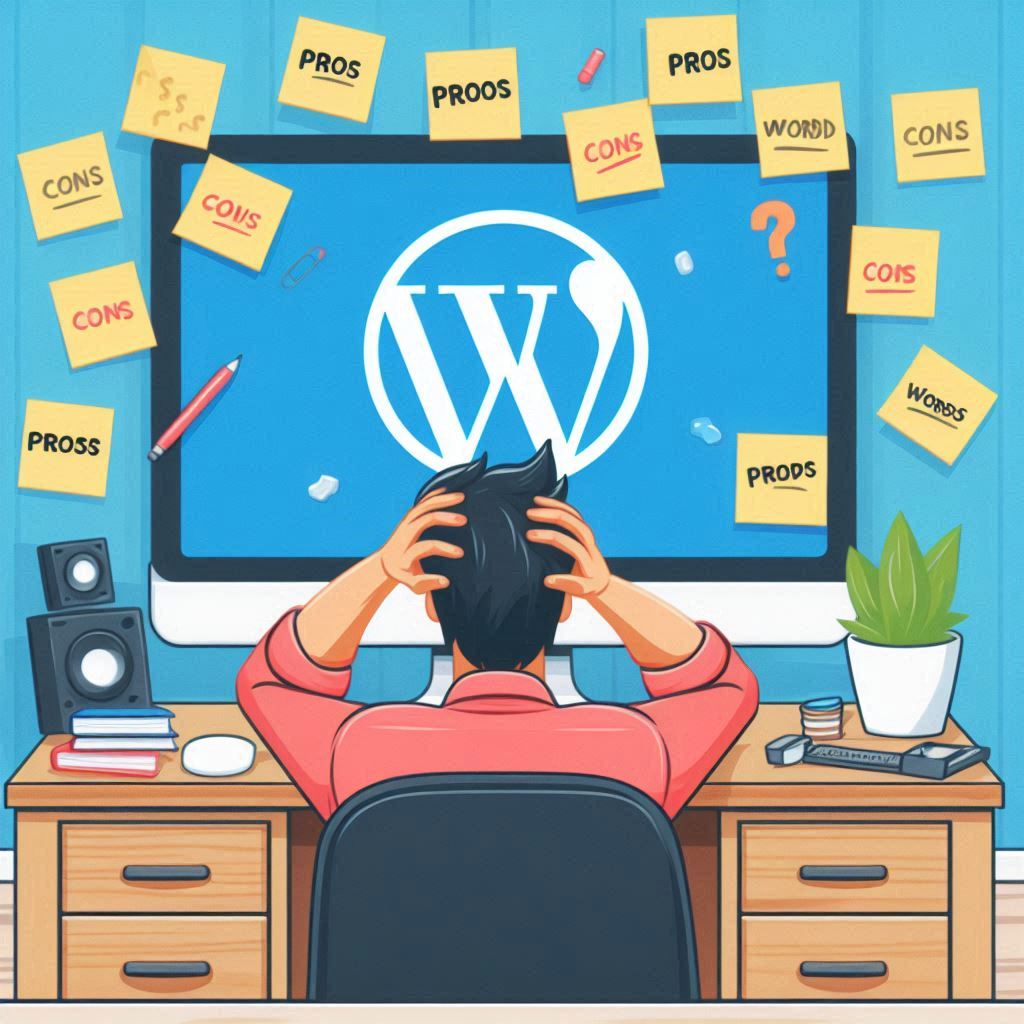
The Pros and Cons of Using WordPress for Web Development
The Pros and Cons of Using WordPress for Web Development WordPress has become one of the most popular content management systems (CMS) in the world, powering over 40% of all websites on the internet. Known for its ease of use and versatility, WordPress is a go-to choice for many developers and businesses. However, like any platform, it comes with its own set of advantages and disadvantages. In this blog, we’ll explore the pros and cons of using WordPress for web development to help you make an informed decision for your next project. Pros of Using WordPress 1. User-Friendly Interface One of the biggest advantages of WordPress is its user-friendly interface. The dashboard is intuitive, allowing even non-technical users to create and manage content easily. The block editor (Gutenberg) simplifies the content creation process with drag-and-drop functionality, making it accessible to beginners. 2. Flexible and Customizable WordPress offers a wide range of themes and plugins that enable developers to customize websites according to their specific needs. Whether you’re building a blog, an eCommerce site, or a portfolio, there’s a theme and plugin available to suit your requirements. This flexibility allows for extensive customization without starting from scratch. 3. SEO-Friendly WordPress is designed with SEO in mind. It generates clean code, provides customizable permalinks, and has various plugins like Yoast SEO that help optimize your site for search engines. This makes it easier to improve your website’s visibility and ranking on search engine results pages (SERPs). 4. Strong Community Support With a large user base and active community, WordPress offers excellent support resources. There are countless forums, tutorials, and documentation available to assist developers and users. This community-driven support can be invaluable when troubleshooting issues or seeking advice on best practices. 5. Regular Updates and Security Features WordPress is continuously updated to improve functionality and security. Regular updates ensure that the platform remains compatible with the latest web standards and technologies. Moreover, there are numerous security plugins available to help protect your website from potential threats. 6. Scalability WordPress is capable of handling small blogs as well as large enterprise websites. With the right hosting and optimization, you can scale your website to accommodate growing traffic and content. This makes WordPress a suitable option for businesses of all sizes. Cons of Using WordPress 1. Security Vulnerabilities While WordPress has made significant strides in security, its popularity makes it a target for hackers. Vulnerabilities can arise from outdated plugins, themes, or core software. Regular maintenance and security measures are essential to safeguard your website. 2. Performance Issues WordPress websites can become slow if not optimized correctly. Heavy themes and excessive plugins can lead to increased loading times, negatively impacting user experience and SEO. Developers need to implement performance optimization strategies to ensure fast load times. 3. Dependency on Plugins While plugins enhance functionality, relying too heavily on them can lead to compatibility issues and increased maintenance. Not all plugins are regularly updated or well-supported, which can create vulnerabilities or functionality problems. Choosing high-quality, reputable plugins is crucial. 4. Learning Curve for Customization Although WordPress is user-friendly, advanced customization may require knowledge of HTML, CSS, and PHP. Beginners may find it challenging to implement more complex changes or custom features without some coding experience. 5. Potential for Bloatware As you add more plugins and themes, your WordPress site may experience “bloat,” leading to slower performance and a cluttered interface. This can make it harder to manage the website effectively. Careful selection and management of plugins and themes are essential. 6. Limited Built-In Features While WordPress is highly customizable, some features may not be included out of the box. Users may need to install multiple plugins to achieve desired functionalities, which can complicate the setup process. Identifying the right combination of plugins can be time-consuming. Conclusion WordPress is an excellent choice for many web development projects, offering a balance of flexibility, user-friendliness, and strong community support. However, it’s essential to consider the potential downsides, such as security vulnerabilities, performance issues, and the learning curve for advanced customization. Ultimately, the decision to use WordPress should be based on your specific project requirements, team expertise, and long-term goals. By weighing the pros and cons, you can make an informed choice that aligns with your web development needs.

How to Choose the Right Tech Stack for Your Web Development Project
How to Choose the Right Tech Stack for Your Web Development Project Choosing the right tech stack for your web development project is crucial to its success. A tech stack comprises the combination of technologies, frameworks, and tools that developers use to build applications. Selecting the appropriate tech stack can significantly impact your project’s performance, scalability, and maintainability. In this blog, we’ll guide you through the essential factors to consider when choosing the right tech stack for your web development project. 1. Understand the Project Requirements Before selecting a tech stack, it’s vital to have a clear understanding of your project’s requirements. This includes: Type of Application: Determine if you are building a static website, a dynamic web application, or a progressive web app (PWA). Features and Functionality: Identify the core features you want to include, such as user authentication, real-time updates, or payment processing. Target Audience: Understand your users’ needs, including the devices and browsers they use. By defining these requirements, you can narrow down the options for your tech stack. 2. Evaluate Development Team Skills The expertise of your development team plays a significant role in choosing a tech stack. Consider the following: Existing Skills: Assess the technologies and programming languages your team is already proficient in. Leveraging existing skills can reduce training time and increase productivity. Learning Curve: If your team is unfamiliar with a specific technology, evaluate the learning curve associated with it. A steep learning curve may lead to delays in project timelines. Choosing a tech stack that aligns with your team’s strengths can enhance collaboration and efficiency. 3. Consider Scalability Scalability is a critical factor for web applications, especially if you anticipate growth in user traffic or data volume. When evaluating a tech stack, consider: Horizontal vs. Vertical Scaling: Decide whether you want to scale horizontally (adding more machines) or vertically (adding resources to a single machine). Framework Support: Look for frameworks and tools that are known for their scalability, such as Node.js for server-side applications or React for building user interfaces. Selecting a scalable tech stack ensures that your application can handle increased demand without compromising performance. 4. Assess Performance Performance directly affects user experience, making it essential to choose a tech stack that optimizes speed and efficiency. Key performance considerations include: Response Time: Evaluate how quickly the stack can process requests and deliver responses. Frameworks like Express.js are known for their high performance in handling web requests. Load Handling: Consider how the stack manages concurrent users and requests. Technologies like Redis can help manage session data efficiently, enhancing overall performance. A tech stack that prioritizes performance will lead to a smoother user experience and improved customer satisfaction. 5. Look for Community Support and Documentation A strong community and comprehensive documentation are invaluable when selecting a tech stack. Consider the following: Active Community: A vibrant community means more resources, tutorials, and forums for troubleshooting. Popular frameworks like Angular and React have large communities that provide support and share best practices. Documentation Quality: High-quality documentation can significantly ease the learning curve and development process. Look for technologies with well-maintained and detailed documentation. Having access to community support can save time and effort during development. 6. Consider Future Maintenance and Updates The tech stack you choose should not only meet your current needs but also be sustainable for future development. Consider: Long-Term Viability: Research whether the technologies you are considering have a history of regular updates and support. Avoid stacks that are no longer actively maintained or have uncertain futures. Ease of Maintenance: Evaluate how easy it is to maintain and update applications built with the chosen stack. Some technologies are designed with modularity in mind, making future updates simpler. Choosing a stack with longevity and ease of maintenance will save you time and resources in the long run. 7. Cost Considerations Budget constraints are a reality for most projects, and the cost associated with a tech stack can vary significantly. Consider the following: Licensing Fees: Some technologies require licenses for commercial use, while others are open-source. Determine your budget for licensing fees. Development Costs: Factor in the potential costs associated with training your team on new technologies or hiring developers with specific expertise. A cost-effective tech stack ensures that you can deliver quality projects within your budget. 8. Prototype and Test Once you’ve narrowed down your options, consider creating a prototype or conducting small tests with the selected technologies. This approach allows you to: Assess Compatibility: Determine how well the technologies work together and whether they meet your project requirements. Identify Challenges: Discover any potential challenges or limitations early in the development process. Prototyping can provide valuable insights into the effectiveness of your chosen tech stack. Conclusion Choosing the right tech stack for your web development project is a critical decision that can influence its success. By thoroughly evaluating project requirements, team skills, scalability, performance, community support, maintenance, cost, and prototyping, you can make an informed decision that aligns with your goals. A well-chosen tech stack will not only enhance your project’s performance but also set a solid foundation for future growth and development.
10 Inspiring Web Development Portfolios for Beginners
10 Inspiring Web Development Portfolios for Beginners As a beginner in web development, creating an impressive portfolio can set you apart in a competitive job market. Your portfolio showcases your skills, projects, and creativity, providing potential employers or clients a glimpse of your capabilities. To inspire you, we’ve curated a list of ten exceptional web development portfolios that beginners can draw from. These examples highlight effective design, usability, and creativity while demonstrating what makes a great portfolio. 1. Timothy Poon Website: timothypoon.com Timothy’s portfolio is a clean, minimalist site that focuses on showcasing his projects. He uses vibrant visuals and concise descriptions, making it easy for visitors to understand his work. The straightforward navigation and consistent layout enhance the user experience, ensuring visitors can easily find what they’re looking for. 2. Jessica Hische Website: jessicahische.is Jessica Hische, a lettering artist and designer, has an engaging portfolio that seamlessly blends web design and typography. Her site features a unique layout, showcasing her work through stunning visuals and an animated interface. The integration of personal projects and client work gives visitors a well-rounded view of her skills and style. 3. Adham Dannaway Website: adhamdannaway.com Adham’s portfolio stands out with its innovative design and interactive elements. His use of split-screen design allows visitors to view his projects while simultaneously getting to know him. The unique approach to storytelling, combined with clear CTAs (calls-to-action), makes it easy for potential clients to connect with him. 4. Alicia McGowan Website: aliciamcgowan.com Alicia’s portfolio is a fantastic example of how to effectively use color and typography. Her website features a vibrant color palette and bold typography that reflects her personality. She includes case studies for her projects, detailing her design process and the impact of her work, which adds depth to her portfolio. 5. Ryan Duffy Website: ryanduffy.co Ryan Duffy’s portfolio is a perfect blend of creativity and professionalism. His site showcases his web development skills through a series of well-organized projects. He employs a simple navigation menu and clear project descriptions, making it easy for visitors to explore his work. Additionally, Ryan includes testimonials from clients, enhancing his credibility. 6. Shane McGee Website: shanemcgee.com Shane’s portfolio is visually striking, using large images and a grid layout to showcase his projects. He highlights his skills in both web development and design, appealing to a broad audience. The inclusion of a blog section allows Shane to share insights and showcase his knowledge, further enhancing his portfolio’s value. 7. Jemima J. Website: jemimaj.com Jemima’s portfolio emphasizes a user-friendly design with intuitive navigation. She effectively uses whitespace to create a clean and organized layout that highlights her projects. Jemima also includes a section for her skills and technologies, providing potential clients with a clear understanding of her expertise. 8. Megan M. Website: meganm.com Megan’s portfolio features a unique storytelling approach, with an engaging narrative that takes visitors through her journey as a developer. The site is visually appealing, with well-structured content and a clear call-to-action. Her case studies offer a detailed look at her projects, showcasing her thought process and problem-solving skills. 9. Emma Grant Website: emmagrant.com Emma’s portfolio is a delightful mix of creativity and professionalism. She uses a playful design and vibrant colors to reflect her personality. Emma includes interactive elements in her portfolio, which engage visitors and showcase her skills in web development. Her project descriptions are clear and informative, helping potential clients understand her approach. 10. Tania Rascia Website: taniarascia.com Tania’s portfolio stands out for its simplicity and clarity. She focuses on her coding skills and personal projects, using a clean design that prioritizes readability. Tania includes a blog where she shares tutorials and insights, which adds value to her portfolio and positions her as an authority in the field. Conclusion Creating a web development portfolio as a beginner can seem daunting, but these inspiring examples demonstrate that it’s achievable with the right approach. Focus on showcasing your skills, personality, and unique projects while keeping usability and design in mind. Remember, your portfolio is a reflection of you as a developer, so take the time to craft a site that highlights your strengths and creativity. As you navigate your web development journey, let these portfolios serve as motivation to build an impressive online presence.